4.1 Create a Tenant Admin
Objective
This section guides the system administrator in creating tenant admin accounts on the platform, enabling each tenant to have its own administrator to manage users, devices, assets, dashboards and other resources under the tenant.
Applicable Role
System Administrator
Prerequisites
Already logged into the System Administrator console.
The target tenant already exists (if not, refer to 2.1 Create a Tenant).
A Tenant Profile already exists (if not, refer to 3.1 Create a Profile).
Steps
Step 1: Navigate to the Tenant Management Page
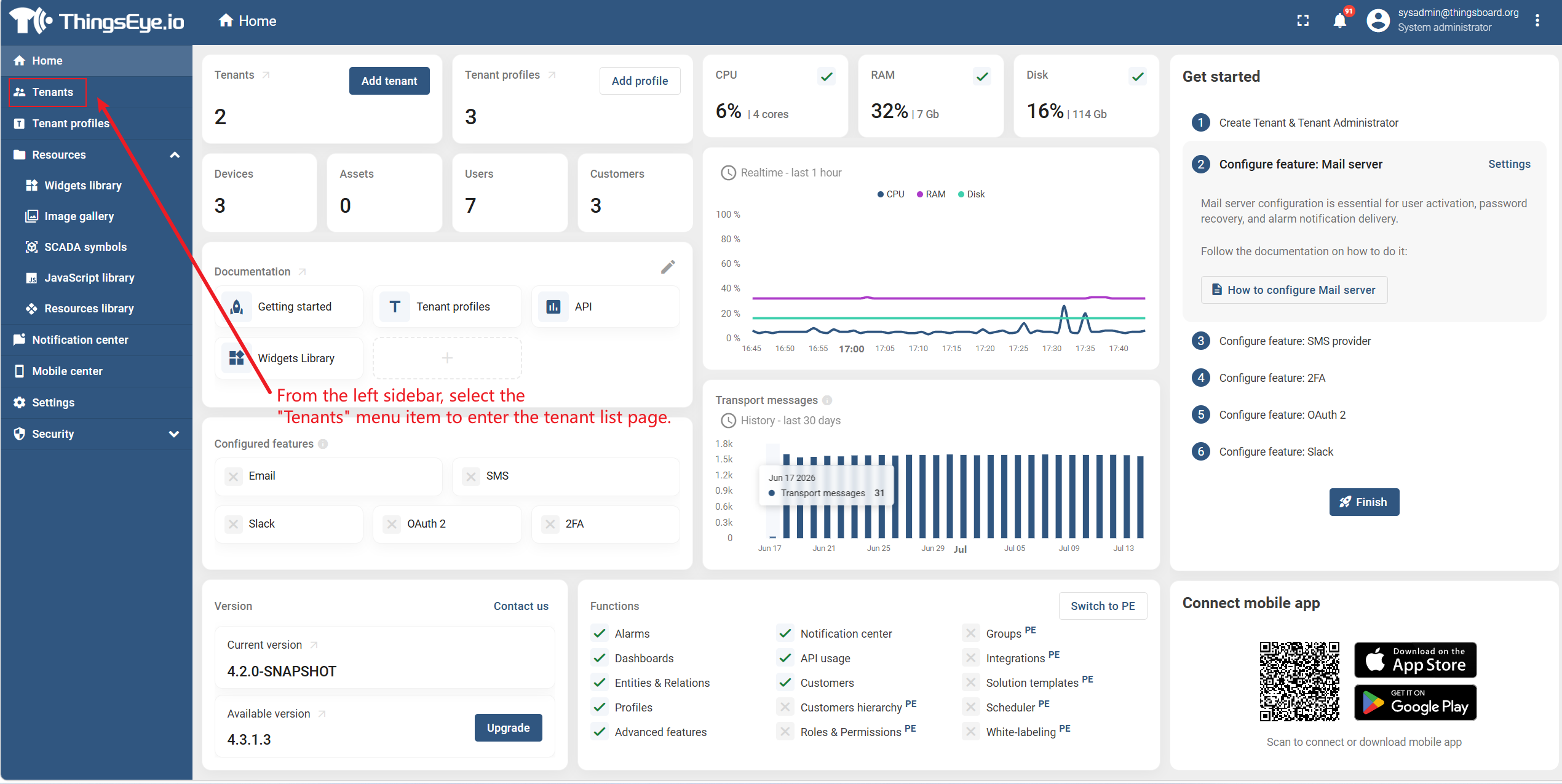
From the left sidebar, select the Tenants menu to enter the tenant list page.
Step 2: Select the Target Tenant
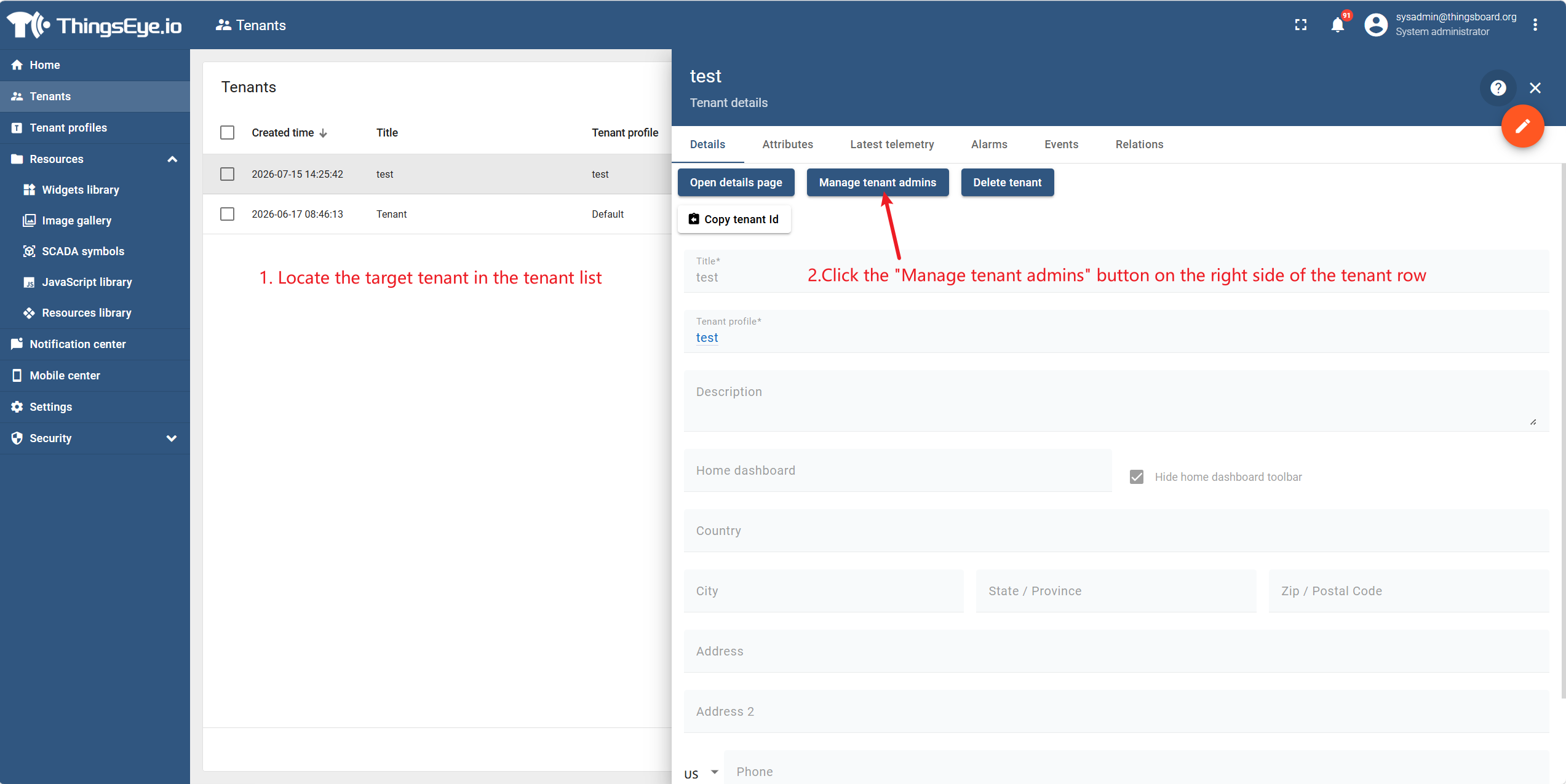
Locate the target tenant in the tenant list, and click the Manage tenant admins button on the right side of the tenant row.
Step 3: Enter the Creation Page
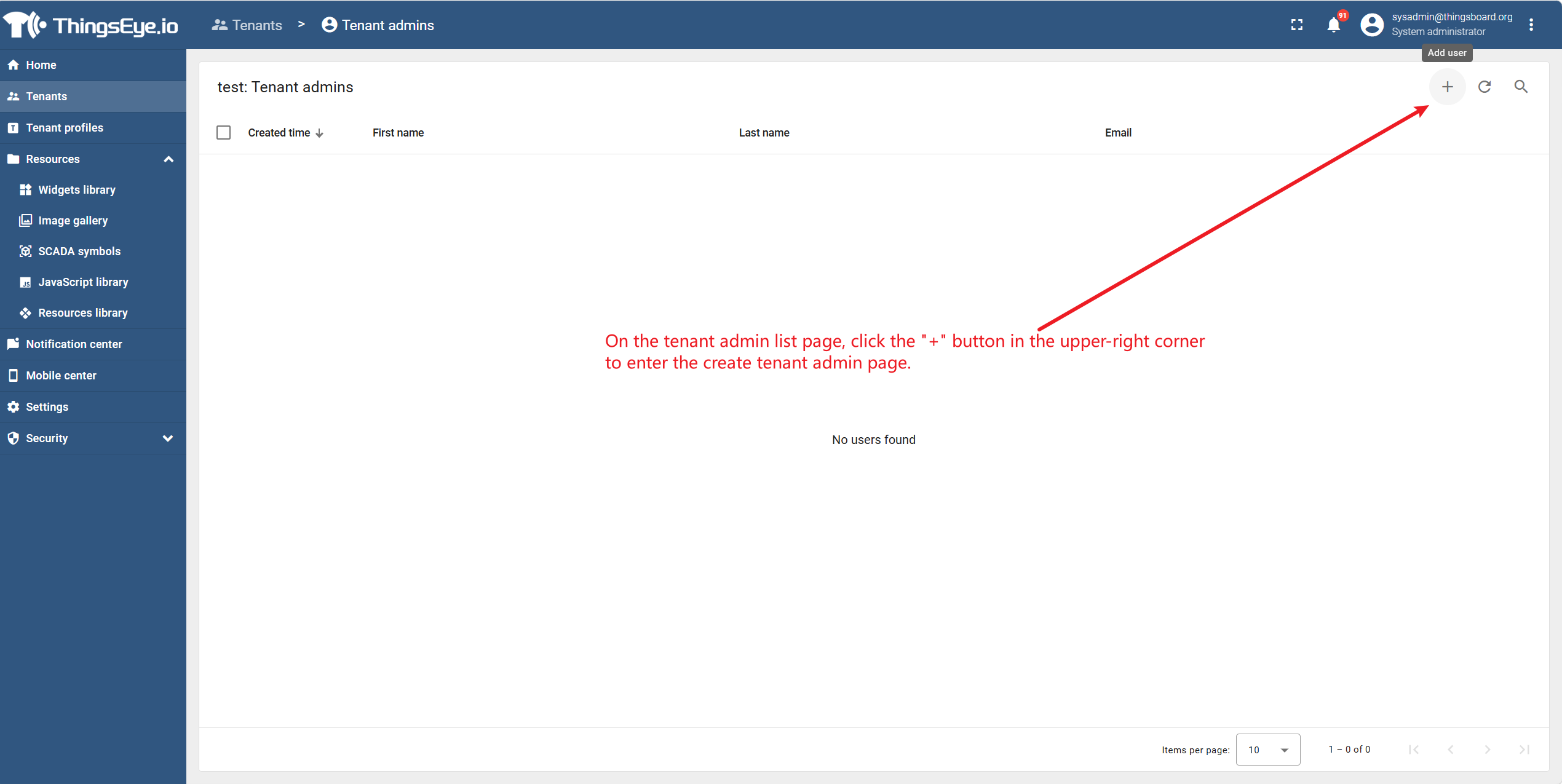
On the tenant admin list page, click the "+" button in the upper-right corner to enter the create tenant admin page.
Step 4: Fill in the Admin Information
Fill in the following fields as needed:
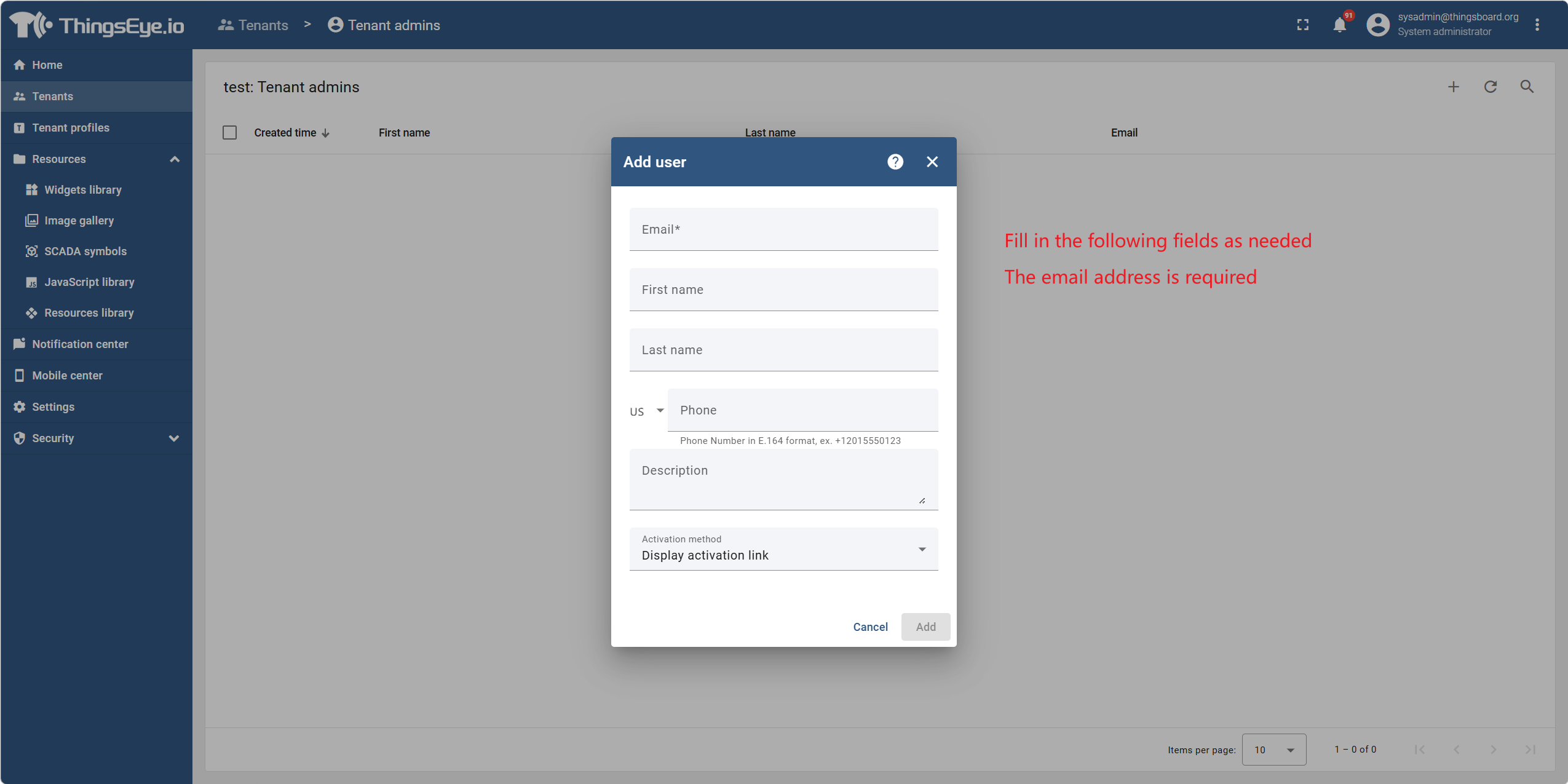
Note: The account and password will be used by the tenant admin for first-time login. The system does not automatically send an initial password email. The system administrator should securely communicate the credentials to the tenant admin.
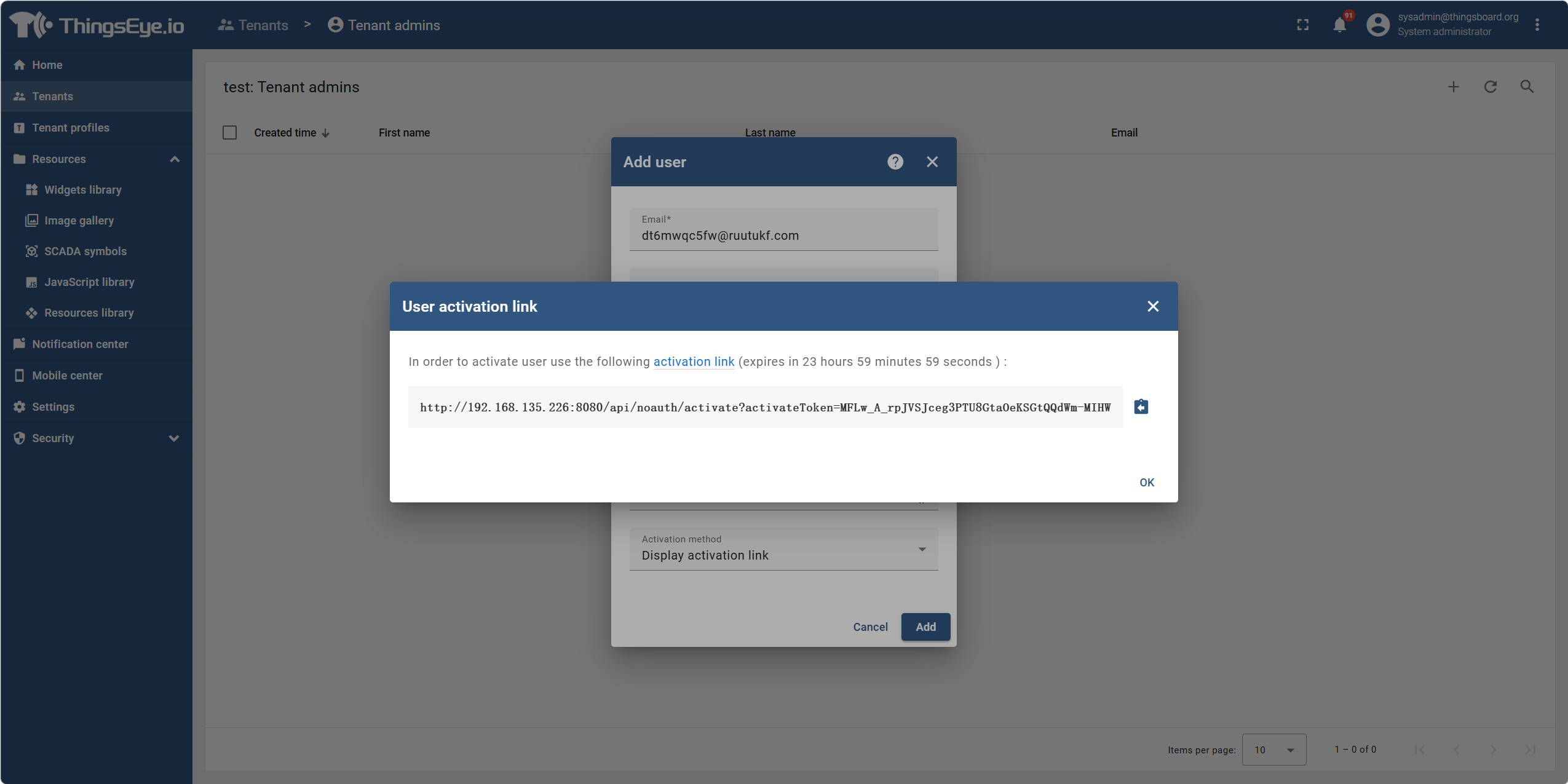
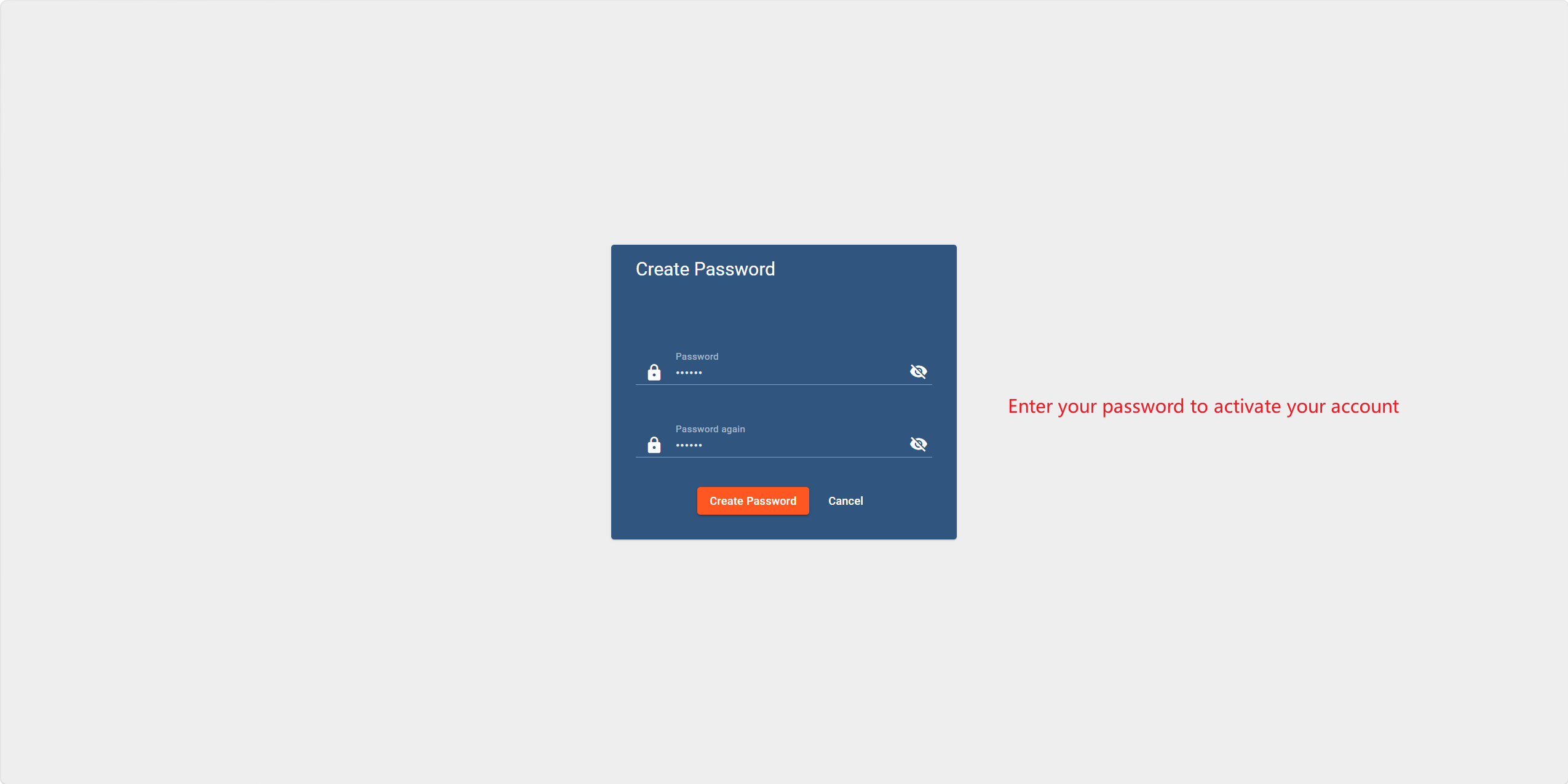
After confirming that all information is correct, click the add button. The system will create the tenant administrator account, which will appear in the tenant administrator list. Afterwards, you need to copy the activation link and set a password to activate the user.
Step 5: Submit the Creation
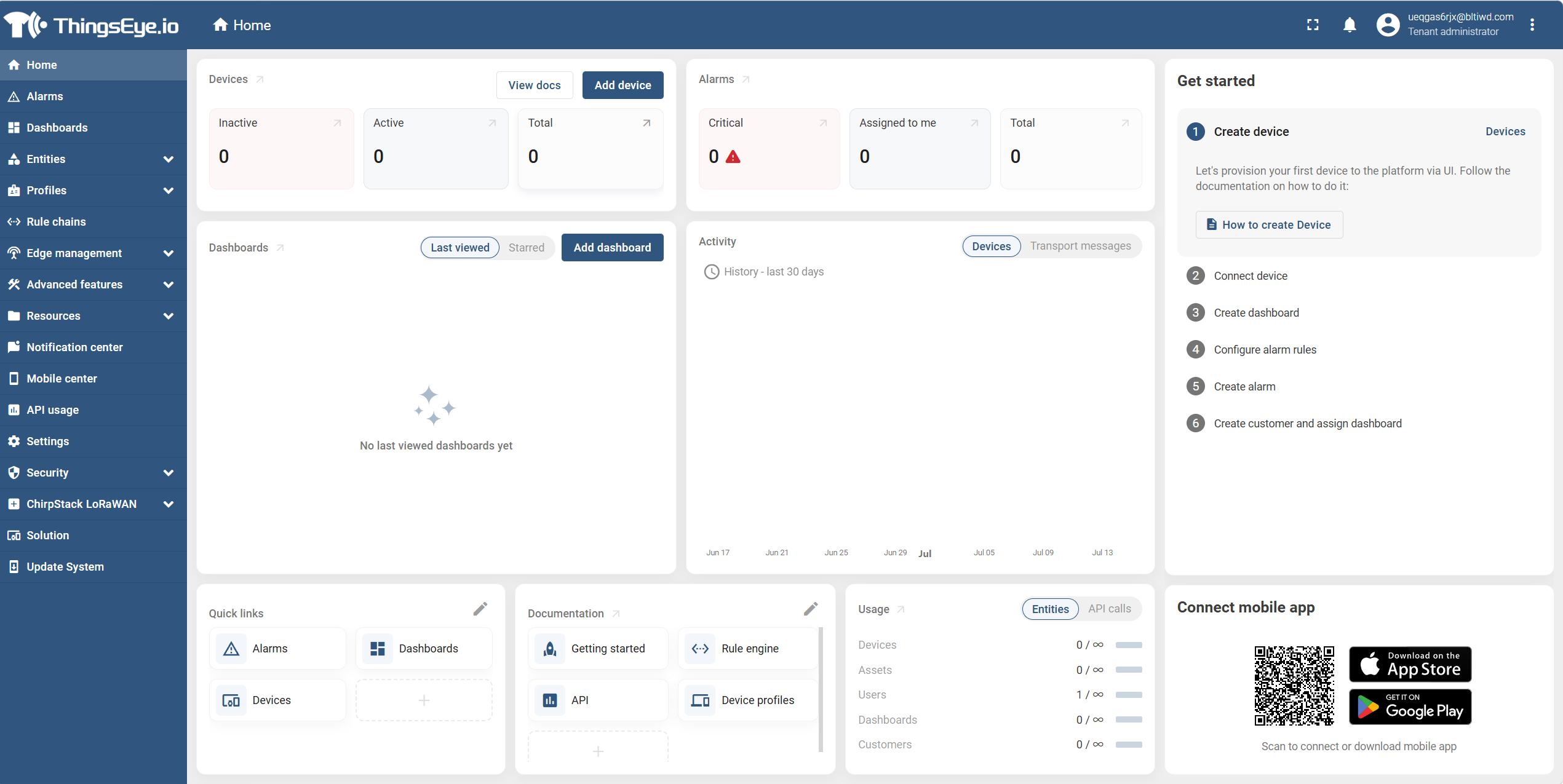
After the password is successfully set, the system will redirect to the tenant administrator interface.
Next Steps
After the tenant admin is created, this account can be used to log in to the Tenant Admin Console to manage users, devices, assets, dashboards and other operations within the tenant.
Completion Indicator
- The newly created account record is displayed in the tenant admin list.
- The new tenant admin can successfully log in to the Tenant Admin Console using the configured credentials.